
Daikin Air Con Remote Symbols Explained: What Every Icon Means
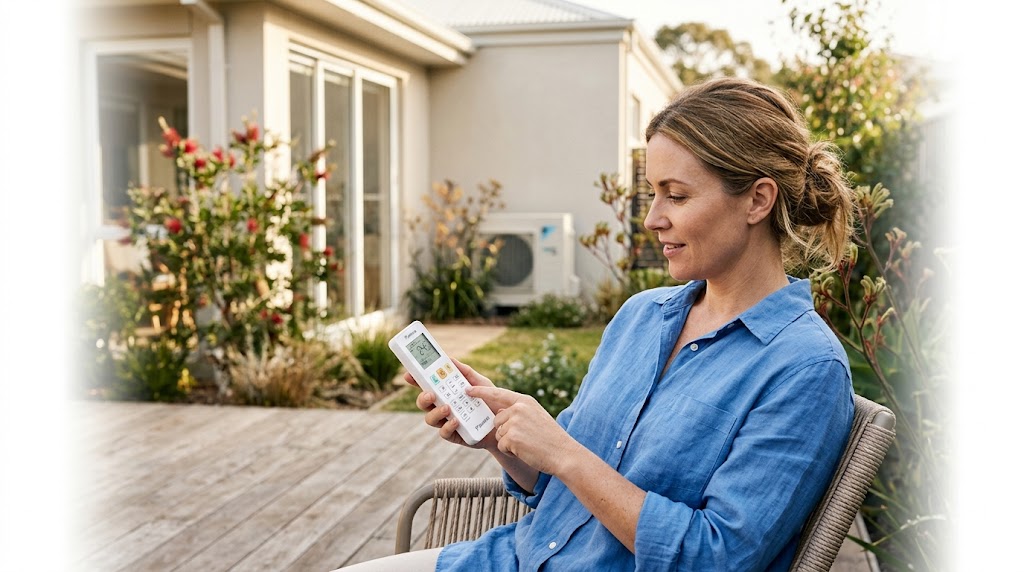
Making Sense of Your Daikin Air Con Remote Symbols
You pick up your Daikin remote, point it at the unit and suddenly realise you have no idea what half the buttons actually do. Snowflakes, suns, little fans, a raindrop in a box. The Daikin air con remote symbols can look like a foreign language the first time you encounter them. Once you know what each icon means, though, getting the most from your unit is genuinely straightforward. This guide covers the four main areas you need to understand: operating modes, fan speed and airflow controls, energy and comfort features, and timer and scheduling buttons. Work through each section and you will have a clear picture of every symbol on your remote.
Key takeaways
- Daikin air con remote symbols control five core operating modes: Auto, Cool, Heat, Dry and Fan Only.
- Fan speed and swing controls distribute air evenly around your room for better comfort.
- Special modes like Econo and Sleep help reduce running costs and improve sleep quality.
The Five Core Operating Mode Symbols
The operating mode buttons are the most important symbols on any Daikin remote. They tell the unit what job to do, and choosing the right one makes a real difference to both comfort and running costs. These modes are standard across the full range of Daikin split systems, though a small number of entry-level models may omit one or two.
| Mode | Symbol | What the unit does |
|---|---|---|
| Auto | The letter 'A' surrounded by four arrows pointing inward | Automatically switches between heating and cooling to hold the set temperature |
| Cool | Snowflake | Runs the compressor to lower the room temperature to your set point |
| Heat | Sun | Runs the compressor in reverse to raise the room temperature to your set point |
| Dry | A box containing two raindrops | Removes humidity from the air without aggressively cooling the room |
| Fan Only | Fan blades (no temperature icon) | Circulates air around the room without any heating or cooling |
Dry mode is particularly useful in humid Australian climates, such as coastal Queensland or the Northern Territory, where the air feels sticky even at moderate temperatures. The unit runs the fan at a low speed and briefly cycles the compressor to pull moisture out of the air, so the room feels more comfortable without dropping the temperature significantly.
Fan Only mode is handy on mild days when you just want to move air around. It uses very little electricity because the compressor never runs, making it a sensible choice for spring evenings when the temperature is already comfortable.
Not every Daikin model includes all five modes. Some compact or budget units skip Dry or Fan Only. If a symbol is missing from your remote, check the unit's manual before assuming the feature is broken. As a reference point, the entry-level Daikin 2.5kW Inverter Split System Lite FTXF25WVMA ($989) covers all five core modes, so even the most affordable end of the range gives you the full set.
Auto Mode vs. Cool Mode: Which Should You Use?
Auto mode is the more convenient choice during shoulder seasons, such as spring and autumn, when temperatures swing between warm afternoons and cool nights. The unit reads the room temperature and decides whether to heat or cool, so you do not need to keep adjusting the mode manually as conditions change through the day.
On a hot Australian summer day, Cool mode is the better option. It gives you direct control over exactly what the unit is doing, and you avoid any situation where the system briefly switches to heat because of a cool morning reading. Set your target temperature to between 24 and 26 degrees Celsius for the best balance of comfort and energy efficiency. Every degree lower than 24 adds roughly 5 to 10 percent to your cooling running costs, so resisting the urge to set it at 18 degrees pays off on your electricity bill.

Fan Speed, Airflow and Swing Symbols
The fan speed and airflow symbols on your Daikin remote control how air is distributed around the room, not just how cold or warm it gets. Fan speed is shown as a series of fan-blade icons that increase in size from left to right, representing Low, Medium, High and Auto. Swing controls use arrow icons to direct the louvres, and choosing the right combination makes a real difference to how evenly your room heats or cools.
| Symbol | Icon appearance | What it does |
|---|---|---|
| Fan Speed Low | Small fan-blade icon | Runs the indoor fan at its quietest, slowest setting |
| Fan Speed Medium | Medium fan-blade icon | A mid-range speed suitable for maintaining a stable temperature |
| Fan Speed High | Large fan-blade icon | Maximum airflow for rapid temperature change |
| Fan Speed Auto | Fan-blade icon labelled 'Auto' or 'A' | Unit adjusts fan speed automatically based on how far the room is from the set temperature |
| Vertical Swing | Curved up-and-down arrow | Oscillates the horizontal louvre to spread air up and down the room |
| Horizontal Swing | Left-right arrow | Sweeps air side to side for wider coverage (available on select models) |
Auto fan speed is the most energy-efficient choice for everyday use. Rather than running at a fixed speed all day, the unit ramps up when the room temperature is far from the set point and dials back once it gets close. This means the compressor does not have to work as hard to maintain the temperature, which keeps running costs down over time.
Vertical Swing is available on virtually all Daikin split systems and is worth leaving on during initial heating or cooling. It distributes air across the full height of the room rather than blasting one zone. Horizontal Swing is a step up from that, sweeping air side to side as well, which is particularly useful in open-plan spaces or rooms with an awkward layout. The Daikin 2.5kW Alira X Inverter Split System FTXM25YVMA ($1,180) includes both vertical and horizontal swing as standard, giving you full three-dimensional airflow control from a single unit.
Special Feature Symbols: Powerful, Econo, Quiet and Sleep
The Powerful, Econo, Quiet and Sleep symbols are four of the most commonly misunderstood icons on a Daikin remote. Each one adjusts how the unit operates to suit a specific situation, from blasting a room back to temperature quickly to keeping noise low enough for a sleeping child. Understanding what each mode actually does helps you use them at the right moment rather than pressing buttons and hoping for the best.
| Mode | Icon appearance | What it does | Best used for |
|---|---|---|---|
| Powerful | Person flexing (strong arm) | Runs the unit at maximum capacity for 20 minutes, then returns to normal operation | Rapidly heating or cooling a room you have just walked into |
| Econo | Downward arrow with a horizontal line beneath it | Caps the unit's power draw to reduce electricity consumption | Peak-tariff periods or when other high-draw appliances are running simultaneously |
| Quiet | Tree and moon icon | Reduces indoor fan speed to its lowest setting to minimise noise | Bedrooms, home offices or any space where noise is a concern |
| Sleep | Moon and stars icon | Gradually adjusts the set temperature overnight and reduces fan noise | Overnight use to maintain comfortable sleeping conditions without overcooling or overheating |
Powerful and Econo modes are mutually exclusive. You cannot run both at the same time because they pull in opposite directions. Powerful mode pushes the unit to its maximum output, while Econo mode deliberately limits it. If you activate one while the other is already running, the unit will cancel the first and apply the second.
Sleep mode is more sophisticated than simply lowering the fan speed. Over the course of the night, it gradually shifts the set temperature by up to two degrees Celsius in the direction that reduces energy use, so the unit is not working as hard during the early hours when your body temperature naturally drops. It also reduces fan noise progressively, which most people find helps them stay asleep rather than being woken by a sudden change in sound level.
The Daikin 5kW Inverter Split System Zena FTXJ50TVMAW ($2,001) includes all four of these features as standard. The Daikin Zena range is a good reference point if you want a unit where every one of these comfort and energy modes is available out of the box.
Using Econo Mode to Cut Running Costs
Econo mode is particularly useful during peak electricity tariff periods, typically late afternoon to early evening on weekdays, or when you are running multiple high-draw appliances such as an oven, dishwasher and washing machine at the same time. By capping the air conditioner's power draw, you reduce the risk of pushing your household consumption into a higher tariff bracket. For best results in summer, pair Econo mode with a set temperature of 25 to 26 degrees Celsius. You will notice a meaningful reduction in running costs without the room feeling uncomfortably warm.
Timer, Temperature Display and Other Remote Symbols
Beyond the core operating modes and fan controls, most Daikin remotes include a handful of scheduling and display symbols that are easy to overlook. The timer icons let you automate when the unit turns on and off, while the temperature display and connectivity symbols give you real-time information about your environment and whether the unit is linked to your smartphone.
| Symbol | Icon appearance | What it does |
|---|---|---|
| Weekly Timer | Clock face with day-of-week indicators around the edge | Lets you set individual on and off times for each day of the week, so the unit follows a different schedule on weekdays versus weekends |
| On/Off Timer | Clock face with a single arrow or on/off label | Sets a one-off start or stop event, useful for turning the unit on before you arrive home or off after you fall asleep |
| Indoor Temperature Display | Thermometer inside a house outline | Shows the current room temperature reading from the indoor unit's sensor |
| Outdoor Temperature Display | Thermometer outside a house outline | Shows the external ambient temperature; available on select models only |
| WiFi / Connectivity | Signal bars or standard WiFi arc symbol | Indicates the unit is connected to the Daikin Online Controller app for smartphone control |
The Weekly Timer is the more powerful of the two scheduling options. Rather than setting a single event, you can programme a different on and off time for every day of the week. This is genuinely useful if your routine varies, for example running the unit longer on weekends than on workdays.
The On/Off Timer is simpler and better suited to one-off situations. If you want the unit to switch off two hours after you go to bed tonight, the On/Off Timer handles that without touching your weekly schedule.
The WiFi symbol confirms the unit is paired with the Daikin Online Controller app, which lets you adjust temperature, mode and fan speed from your phone anywhere you have an internet connection. This feature is built into every model in the Alira X and Zena ranges as standard. Browse our Daikin WiFi-enabled split systems if smartphone control is a priority for your household.
The outdoor temperature display is worth a mention because not every remote shows it. If your remote has this symbol and the reading seems unusually high or low, it is pulling data from the outdoor unit's sensor rather than a weather service, so it reflects the temperature at the exact location of your condenser.
FAQ: Daikin Remote Symbols and Modes
These are the questions Australians ask most often about Daikin remote symbols. Each answer is written to give you a clear, direct response you can act on straight away.
What does the snowflake symbol mean on a Daikin remote?
The snowflake symbol represents Cool mode. Pressing it tells the unit to run the compressor and lower the room temperature to your chosen set point. It is the mode to use on hot Australian summer days when you want active cooling rather than just air circulation.
What is the difference between Quiet mode and Sleep mode on a Daikin air conditioner?
Quiet mode simply reduces the indoor fan to its lowest speed to minimise noise, and it stays at that setting for as long as you leave it active. Sleep mode goes further by gradually adjusting the set temperature by up to two degrees Celsius over the course of the night and progressively reducing fan noise, so the unit works less hard during the early hours when your body temperature naturally drops.
How do I set the timer on my Daikin remote?
Daikin remotes offer two timer options. The On/Off Timer sets a single start or stop event and is the quickest option for a one-off need. The Weekly Timer lets you programme different on and off times for each day of the week. Press the relevant timer button, use the up and down arrows to set the time, then confirm with the Set or Timer button. Refer to your model's manual for the exact button sequence, as it varies slightly between remote generations.
What does the Econo mode symbol look like on a Daikin remote?
The Econo mode symbol is typically a downward arrow with a horizontal line beneath it, representing a cap on power consumption. When active, it limits the unit's maximum power draw, which is useful during peak electricity tariff periods or when other high-draw appliances are running at the same time. It will not cool or heat the room as quickly as normal operation, but it keeps your electricity consumption in check.
Ready to Upgrade Your Daikin System?
Once you understand what every symbol on your Daikin remote actually does, you can run your unit far more efficiently. Choosing the right operating mode, setting the fan to Auto, using Sleep mode overnight and activating Econo during peak tariff periods all add up to real savings on your electricity bill and a more comfortable home year-round.
If your current unit is missing features you now realise you want, such as horizontal swing, WiFi control or a full set of comfort modes, it may be time to consider an upgrade. Newer Daikin models pack a lot more capability into a compact indoor unit, and the running cost improvements over an older system can be significant.
If you are thinking about upgrading, browse our full range of Daikin air conditioners to find the right model for your home.
Need expert advice?
Our team can help you choose the right air conditioning system for your space.